 Cobi Player
Your IPTV,
only better.
A fast, clean player for iPhone, iPad and Apple TV — with a Mac version on the way. Bring your own Xtream login or M3U playlist; Cobi Player does the rest.
01Features
Everything in one player
Built because other players were slow, or couldn’t filter by country. Cobi Player is quick, native, and gets out of your way.
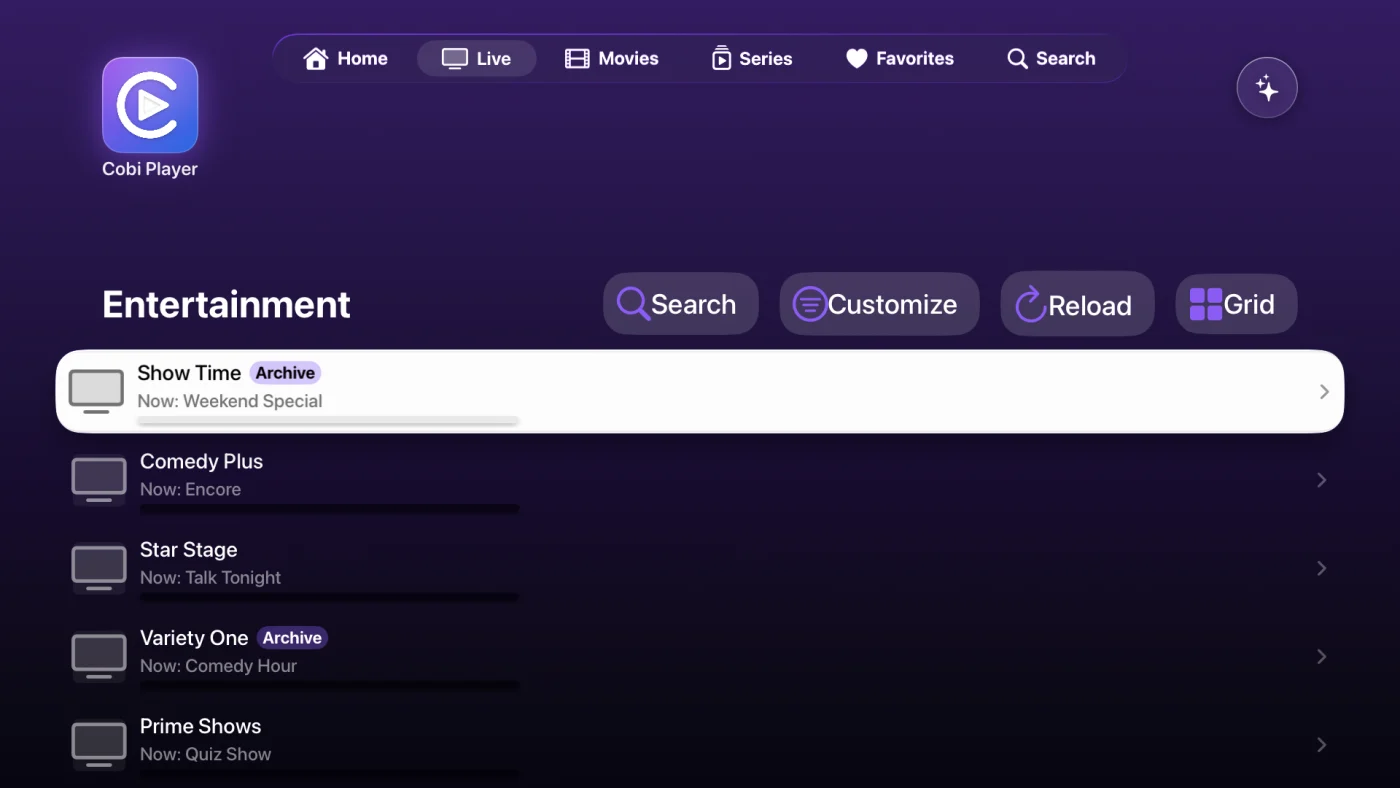
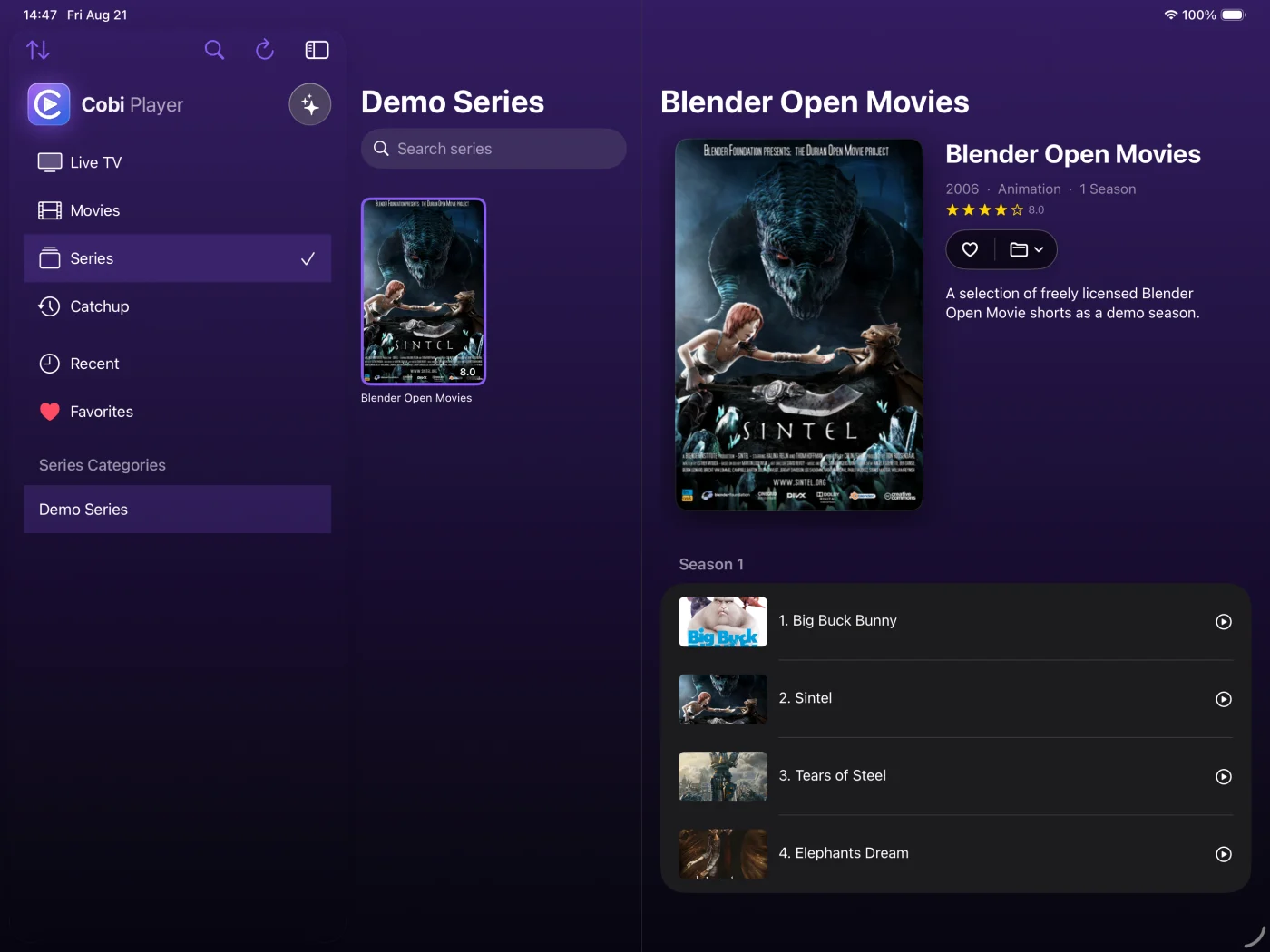
Live TV, Movies & Series
One app for everything your service offers — plus catch‑up where the provider supports it. (An Xtream login is what unlocks all of it; an M3U playlist gives you live channels.)
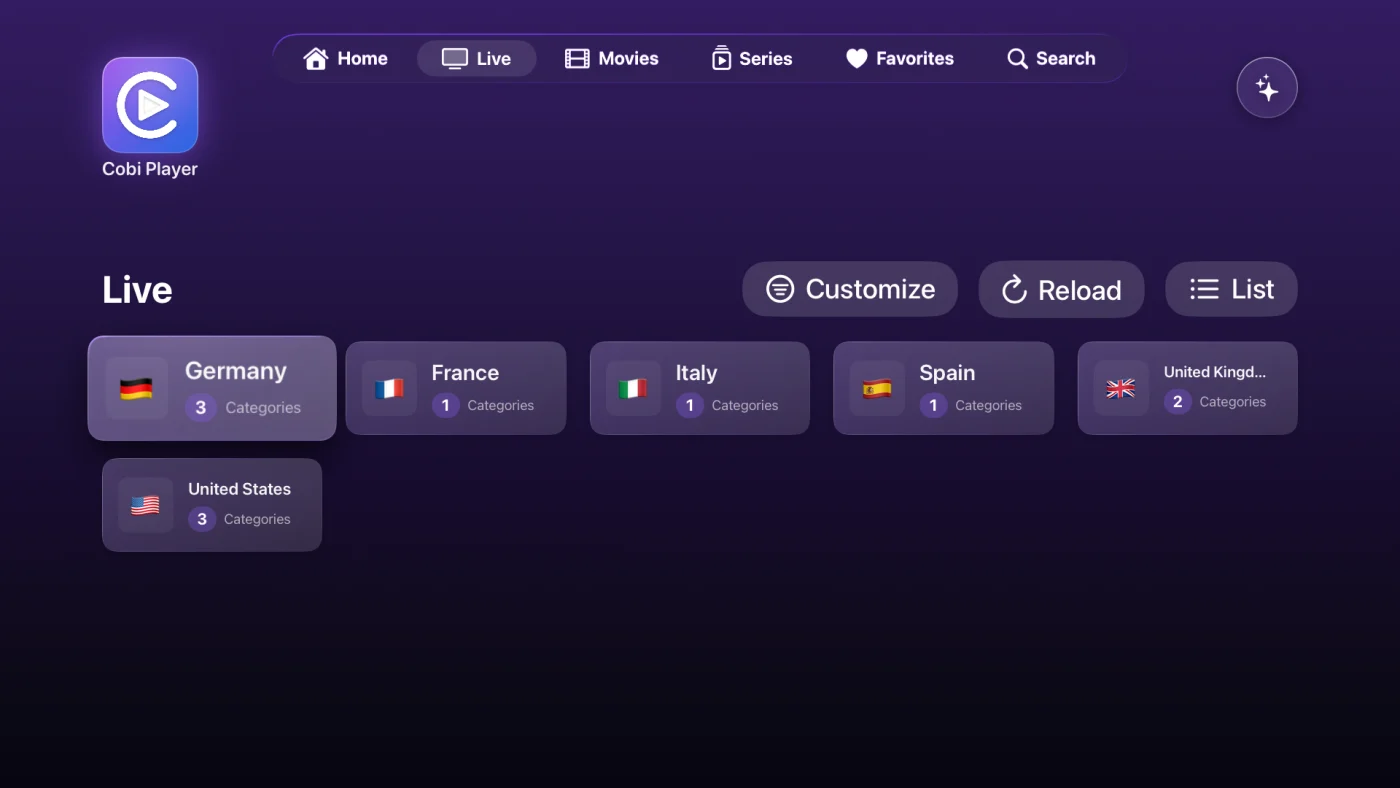
Filter by country
Channels grouped by country so you find what you want in seconds.
Search that finds it
Search the whole section, a single country, or the category names — plus a quick filter inside the list you are looking at. Most hits show where they sit and take you there.
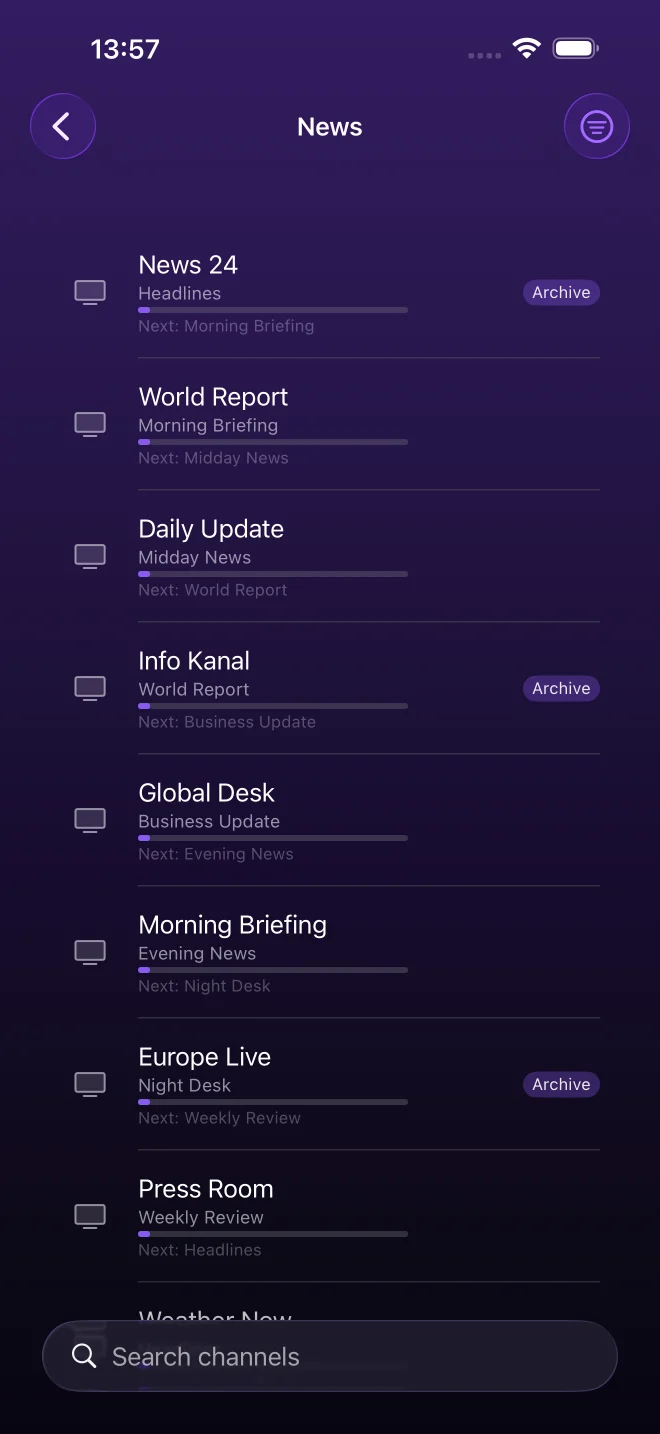
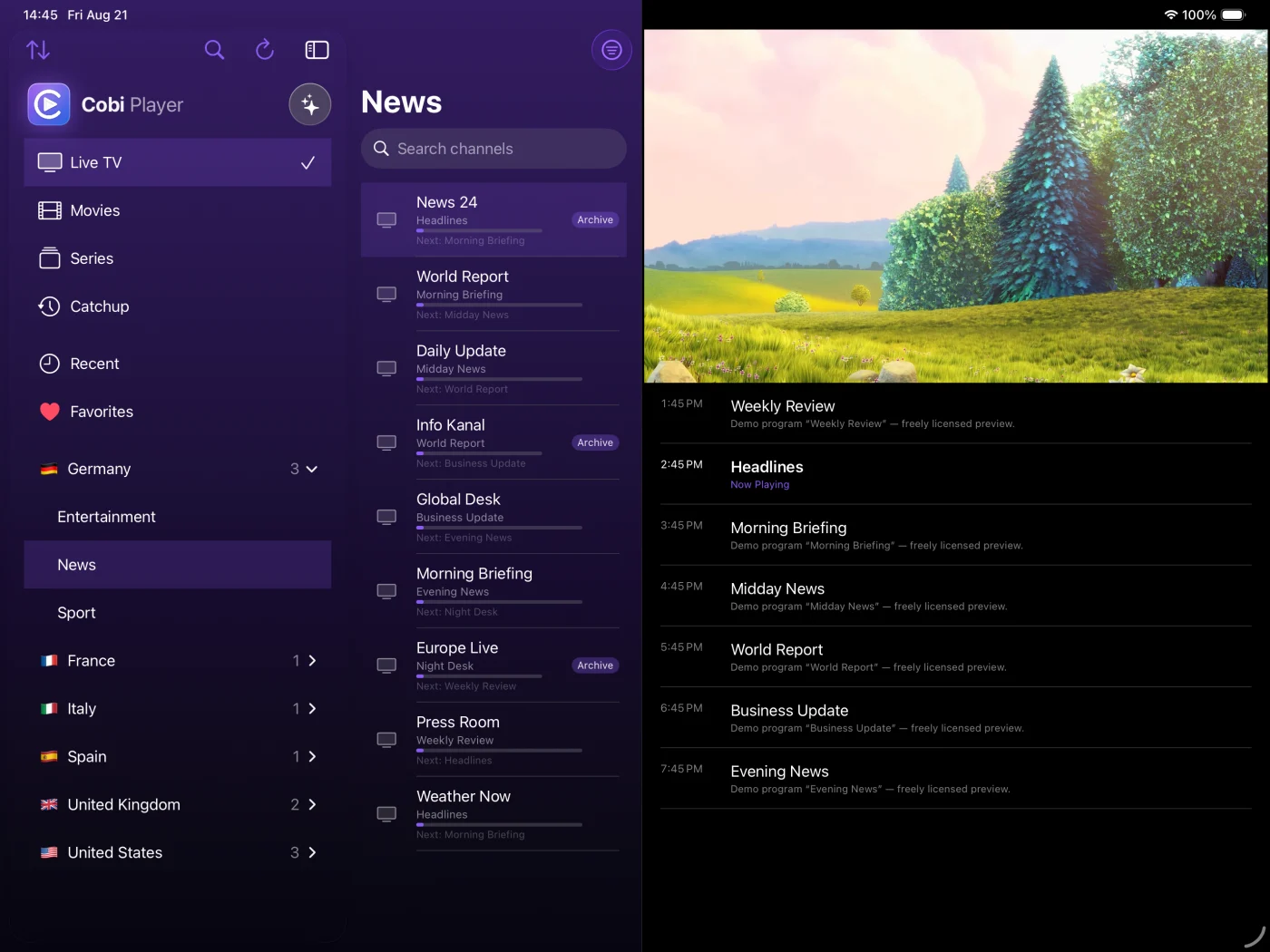
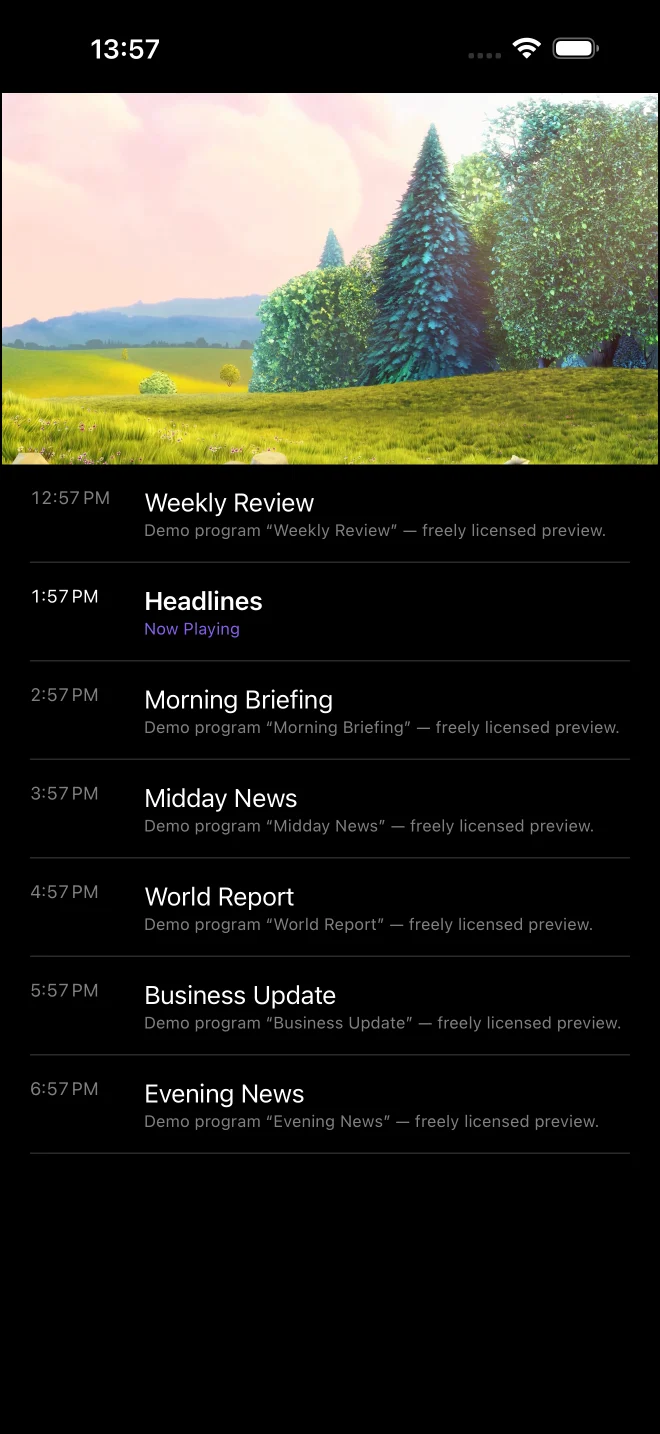
Guide & archive
What’s on now and next, right in the channel list. Where the provider keeps an archive you can play a past program; on Apple TV the full guide opens with it, and you can restart the show that’s already running.
Audio & subtitles
Pick the language track or the subtitles a stream carries, without leaving the picture.
Recovers on its own
Provider streams stall. Cobi Player notices a frozen picture and reconnects by itself instead of leaving you tapping reload.
Picture‑in‑Picture
Keep watching in a floating window while you browse — or leave the app and the audio keeps playing. On iPhone and iPad.
Controls that stay out of the way
In films and episodes: skip 10 seconds, or hold to watch at double speed. In full screen, drag up or down for volume and brightness. Switch between a fitted picture and a filled screen at any time. On iPad — and in the Mac version to come — a keyboard works too: space, arrows, M and F.
Your lists, your way
Hide the countries, categories and channels you never watch, and pin your favorites to the top. Cobi Player Pro unlocks it; showing things again and resetting are always free.
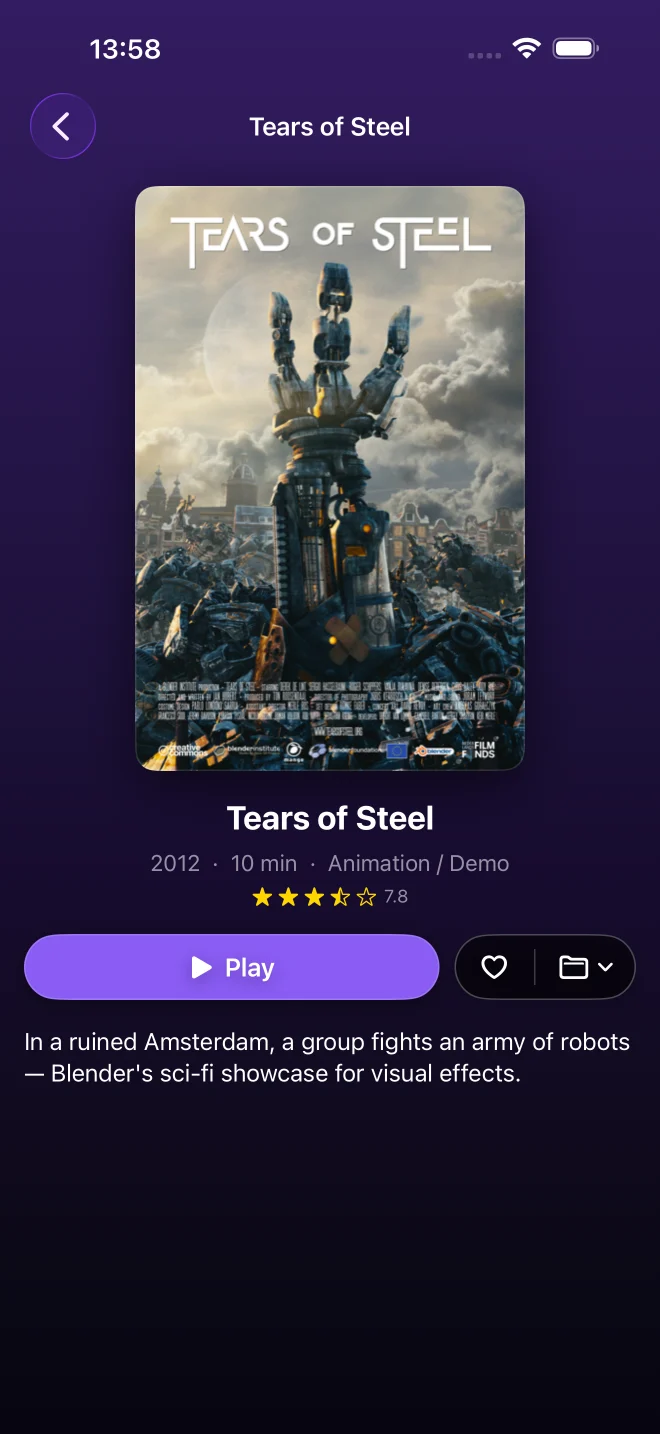
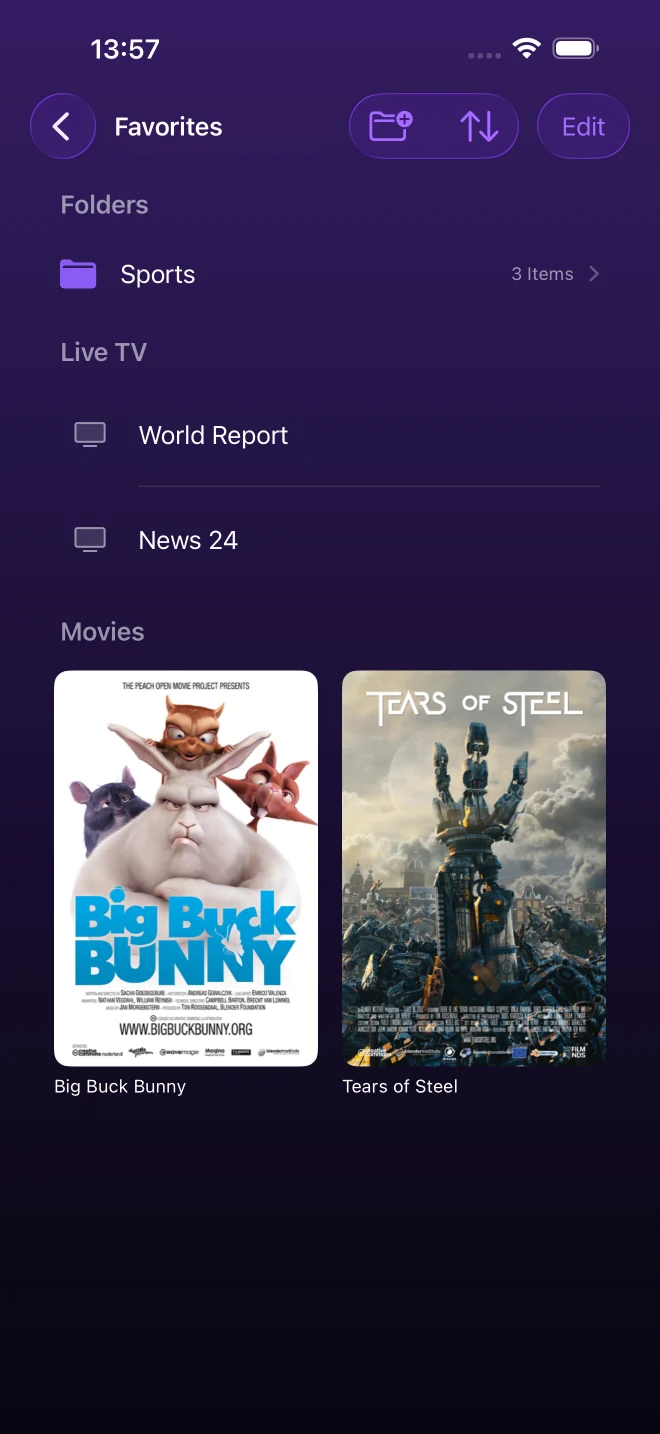
Favorites in folders
Marking favorites is free. Cobi Player Pro lets you sort them into your own folders — channels, films and shows side by side, in the order you choose.
Sleep timer & speed
Fall asleep to the TV: 15 to 90 minutes, or “end of program” on live channels. Watch at 0.5× to 2×, and nudge audio or subtitles back into sync when a stream is out of step. Cobi Player Pro unlocks these; choosing the audio or subtitle track stays free for everyone.
Same on every device
Favorites, folders, history, resume positions, your customized lists and settings stay the same on iPhone, iPad and Apple TV. It runs through your own iCloud — no account with us, nothing reaches the developer. Cobi Player Pro unlocks it; switching it off and deleting what it stored never do.
Set up the Apple TV in seconds
Send your account from the iPhone with an 8‑digit code instead of spelling out a server address, username and password with the remote. It travels across your local network and through your own iCloud at the same time — whichever arrives first wins — and the code is what decrypts it.
More than one account
Keep several Xtream logins or M3U playlists side by side and switch between them — each with its own favorites, history and lists.
Resume & Recents
Films and episodes pick up where you stopped, and one tap takes you back to what you watched last.
Dark, cinematic design
A clean interface tuned for the couch — on iPhone, iPad and Apple TV. A native Mac version is on the way.
Private by design
No account and no analytics of our own. Your login stays in the encrypted Keychain on your device. The free version is funded by ads on iPhone and iPad — you decide whether they may be personalized — and Pro removes them entirely.
Auf Deutsch
Live‑TV, Filme & Serien
Eine App für alles, was dein Anbieter hat — samt Catchup, wo er ein Archiv führt. (Ein Xtream‑Zugang schaltet alles frei; eine M3U‑Playlist liefert Live‑Sender.)
Nach Land filtern
Sender nach Land gruppiert — damit du in Sekunden findest, was du suchst.
Suche, die trifft
Durchsucht den ganzen Bereich, ein einzelnes Land oder die Kategorie‑Namen — dazu ein schneller Filter in der Liste, die gerade offen ist. Die meisten Treffer zeigen, wo sie einsortiert sind, und bringen dich dorthin.
Programm & Archiv
Was jetzt und was als Nächstes läuft, direkt in der Senderliste. Wo der Anbieter ein Archiv führt, spielst du eine vergangene Sendung; am Apple TV öffnet sich die volle Programmübersicht dazu, und die laufende Sendung startest du von vorn.
Ton & Untertitel
Wähle die Tonspur oder die Untertitel, die ein Stream mitbringt — ohne das Bild zu verlassen.
Erholt sich von selbst
Anbieter‑Streams hängen. Cobi Player merkt es und verbindet sich neu, statt dich auf ein eingefrorenes Bild tippen zu lassen.
Bild‑im‑Bild
Weiterschauen im schwebenden Fenster, während du stöberst — oder die App verlassen, der Ton läuft weiter. Auf iPhone und iPad.
Bedienung, die nicht im Weg steht
Bei Filmen und Episoden: 10 Sekunden springen oder gedrückt halten für doppeltes Tempo. Im Vollbild hoch oder runter ziehen für Lautstärke und Helligkeit. Zwischen eingepasstem Bild und ausgefülltem Schirm wechseln geht immer. Auf dem iPad — und in der kommenden Mac‑Fassung — geht auch die Tastatur: Leertaste, Pfeile, M und F.
Deine Listen, dein Geschmack
Blende die Länder, Kategorien und Sender aus, die du nie schaust, und hefte deine Favoriten nach oben. Cobi Player Pro schaltet es frei; wieder einblenden und zurücksetzen bleibt immer gratis.
Favoriten in Ordnern
Favoriten zu markieren ist gratis. Cobi Player Pro sortiert sie in eigene Ordner — Sender, Filme und Serien nebeneinander, in deiner Reihenfolge.
Einschlaf‑Timer & Tempo
Vor dem Fernseher einschlafen: 15 bis 90 Minuten oder „Ende der Sendung“ bei Live‑Sendern. Schauen mit 0,5× bis 2×, und Ton oder Untertitel wieder in den Takt bringen, wenn ein Stream aus dem Tritt ist. Cobi Player Pro schaltet das frei; die Spur zu wählen bleibt für alle gratis.
Auf jedem Gerät gleich
Favoriten, Ordner, Verlauf, gemerkte Positionen, deine angepassten Listen und Einstellungen liegen auf iPhone, iPad und Apple TV gleich. Das läuft über deine eigene iCloud — kein Konto bei uns, beim Entwickler kommt nichts an. Cobi Player Pro schaltet es frei; Ausschalten und Löschen brauchen nie einen Kauf.
Apple TV in Sekunden eingerichtet
Schick den Zugang mit einem 8‑stelligen Code vom iPhone hinüber, statt Serveradresse, Benutzernamen und Passwort mit der Fernbedienung zu buchstabieren. Er geht gleichzeitig über dein lokales Netz und über deine eigene iCloud — was zuerst ankommt, gilt — und der Code ist der Schlüssel dazu.
Mehr als ein Zugang
Mehrere Xtream‑Logins oder M3U‑Playlists nebeneinander, jederzeit umschaltbar — jeder mit eigenen Favoriten, eigenem Verlauf und eigenen Listen.
Weiterschauen & Verlauf
Filme und Episoden laufen dort weiter, wo du aufgehört hast, und ein Tipp bringt dich zurück zum zuletzt Gesehenen.
Dunkel und kinoreif
Eine ruhige Oberfläche fürs Sofa — auf iPhone, iPad und Apple TV. Eine native Mac‑Fassung ist unterwegs.
Privat gebaut
Kein Konto, keine eigene Analyse. Dein Zugang bleibt im verschlüsselten Schlüsselbund auf deinem Gerät. Finanziert wird die Gratis‑Fassung über Werbung auf iPhone und iPad — ob sie personalisiert sein darf, entscheidest du — und Pro entfernt sie ganz.
A player — not a service
Cobi Player ships with no channels and no content of its own. You connect your own IPTV (Xtream Codes) account or an M3U playlist that you already have. No idea where to start? A built‑in preview mode plays a few freely‑licensed demo streams so you can try the app first.
02Across your devices
Set it up once
Two things you only want to do once: getting your account onto the Apple TV, and keeping your favorites the same everywhere. Both are part of Cobi Player Pro, both run without any server of ours — and neither is part of the Mac version to come.
Step 1 · once, on the iPhone
Transfer your account
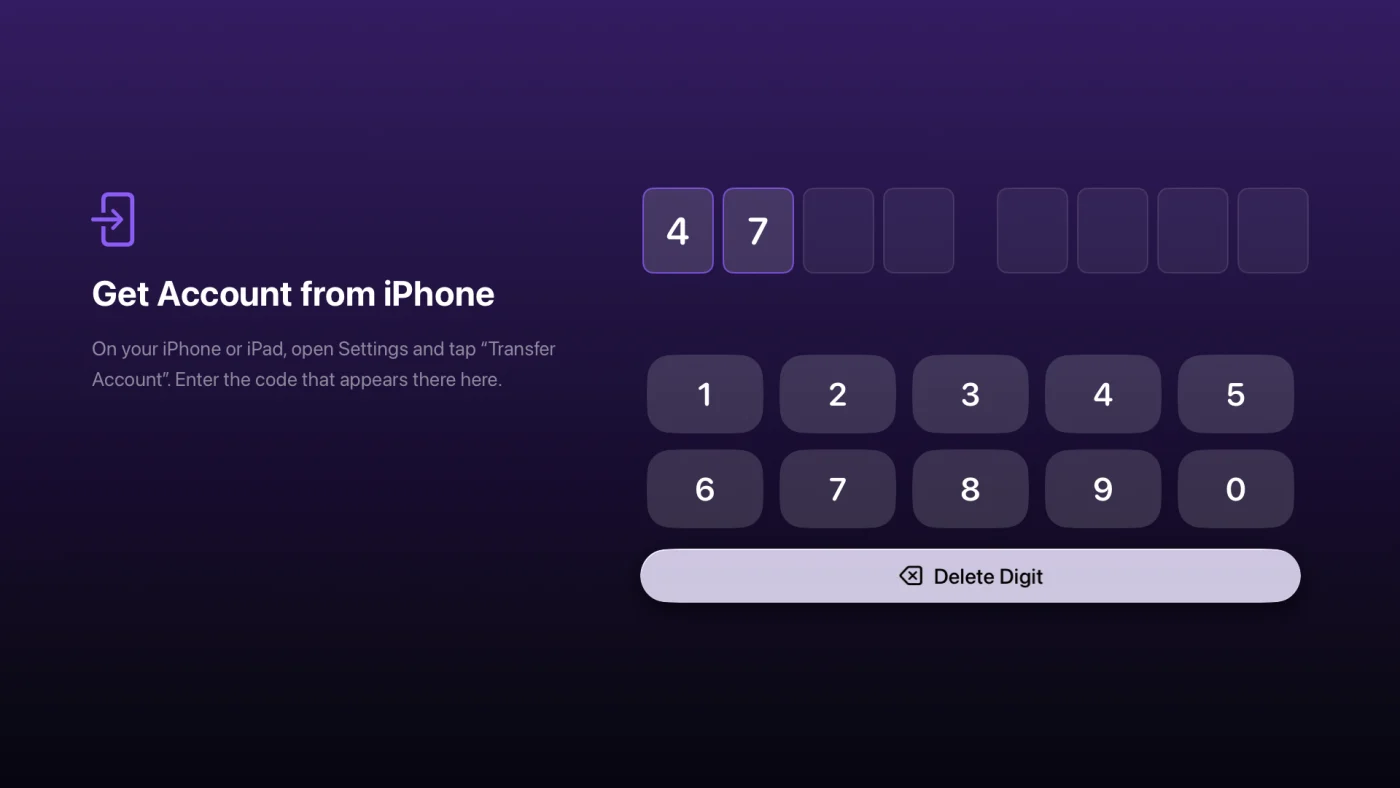
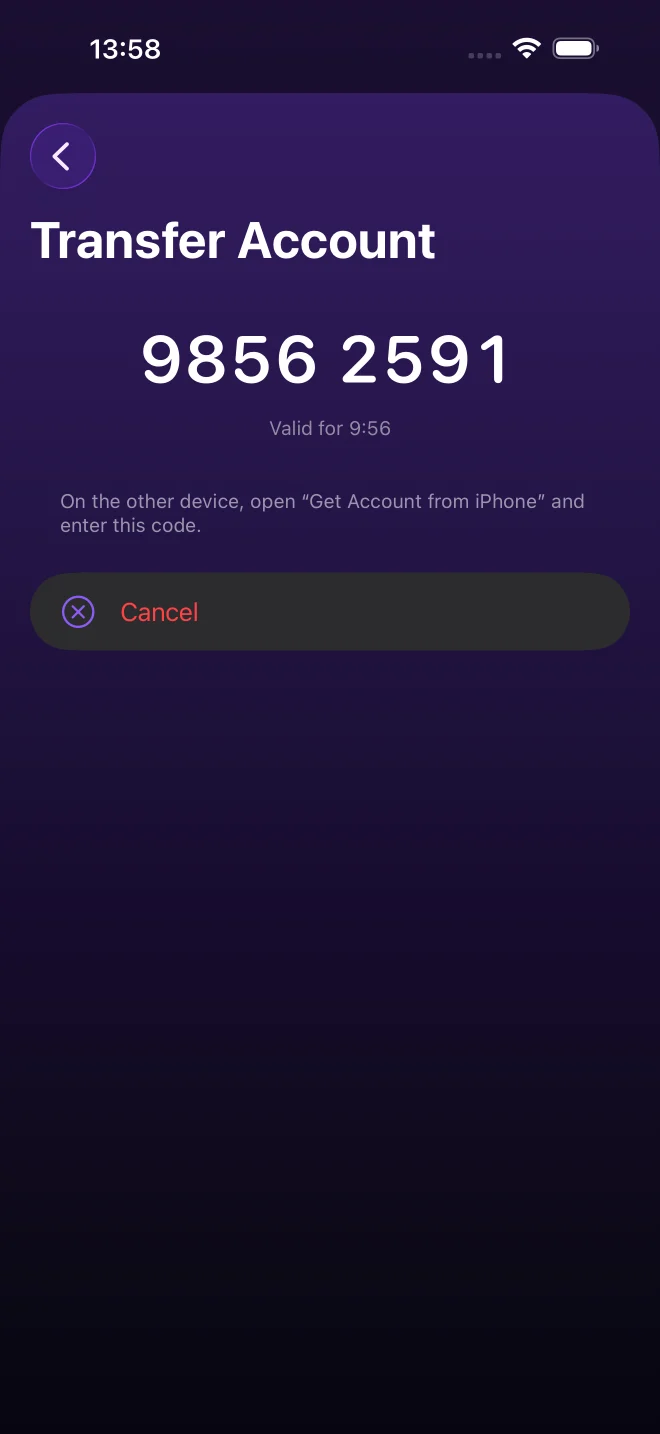
Typing a server address, a username and a password with the Apple TV remote is slow and error‑prone. You don’t have to.
- On the iPhone or iPad: Settings → Transfer Account. An 8‑digit code appears.
- On the Apple TV: Get Account from iPhone, enter the code — done.
While the transfer is running — you can close the screen and walk to the TV — the account is offered on two routes at once: directly across your local network — which even works when the two devices are not on the same Wi‑Fi, the same device‑to‑device link AirDrop uses — and through your own iCloud. The receiving device takes whichever arrives first.
The code is not a confirmation, it is the key: the account data is encrypted with it, and on the local route the other device must prove it knows the code before anything is handed over. The offer stops working after 10 minutes; the copy in iCloud disappears when the offer ends, at the latest the next time the app starts, and “Cancel” ends both routes on the spot.
Step 2 · then everywhere
Device sync
Turn it on and your library looks the same on every device you own:
- Favorites and your favorite folders
- The recently watched list
- Resume positions for films and episodes
- Your customized lists — what you hid, what you pinned
- Settings that belong to the account: refresh interval, sort order, list or tiles
It runs through your own iCloud. There is no server of ours in between, no account with us, and nothing about what you watch reaches the developer.
Sync is off by default. You can switch it off again at any time — what is on the device stays exactly as it is — and “Remove My Data from iCloud” deletes what was stored there. Neither of those ever needs the Pro purchase.
Made for the big screen
Auf Deutsch
Schritt 1 · einmalig, am iPhone
Zugang übertragen
Serveradresse, Benutzername und Passwort mit der Apple‑TV‑Fernbedienung einzutippen ist mühsam und fehleranfällig. Musst du aber nicht.
- Auf dem iPhone oder iPad: Einstellungen → Zugang übertragen. Es erscheint ein 8‑stelliger Code.
- Auf dem Apple TV: Zugang vom iPhone holen, Code eingeben — fertig.
Solange die Übertragung läuft — du kannst den Bildschirm schliessen und zum Fernseher gehen — wird der Zugang auf zwei Wegen gleichzeitig angeboten: direkt über dein lokales Netz — das klappt sogar, wenn die Geräte nicht im selben WLAN sind, über dieselbe Direktverbindung wie AirDrop — und über deine eigene iCloud. Das empfangende Gerät nimmt, was zuerst da ist.
Der Code ist keine blosse Bestätigung, sondern der Schlüssel: Die Zugangsdaten sind damit verschlüsselt, und auf dem lokalen Weg muss das andere Gerät nachweisen, dass es ihn kennt, bevor überhaupt etwas herausgegeben wird. Das Angebot verfällt nach 10 Minuten; die Kopie in der iCloud wird gelöscht, sobald sie abgeholt wurde, spätestens beim nächsten Start der App, und „Abbrechen“ beendet beide Wege auf der Stelle.
Schritt 2 · danach überall
Geräte‑Abgleich
Einschalten — und deine Mediathek sieht auf jedem deiner Geräte gleich aus:
- Favoriten und deine Favoriten‑Ordner
- Der Verlauf (zuletzt gesehen)
- Weiterschauen‑Positionen für Filme und Episoden
- Deine angepassten Listen — was du ausgeblendet und was du angeheftet hast
- Einstellungen, die zum Zugang gehören: Aktualisierungs‑Frist, Sortierung, Liste oder Kacheln
Das läuft über deine eigene iCloud. Dazwischen steht kein Server von uns, es entsteht kein Konto bei uns, und beim Entwickler kommt nichts an — auch nichts darüber, was du schaust.
Der Abgleich ist standardmäßig aus. Du kannst ihn jederzeit wieder ausschalten — was auf dem Gerät liegt, bleibt unverändert liegen — und „Meine Daten aus iCloud entfernen“ löscht das dort Abgelegte. Beides braucht nie den Pro‑Kauf.
03Support
Help & contact
Cobi Player is a pure media player: you connect your own IPTV (Xtream) account or M3U playlist. The app ships with no channels or content of its own.
Email support@codebits.chGetting started
- Open Settings → Add Profile.
- Choose Xtream login (host, username, password) or M3U playlist (URL or file). You can paste a full server URL into the host field — the app extracts it automatically.
- Save — your channels appear, grouped by country.
- No account yet? Tap Watch Preview Without a Server to try the app with free demo streams.
- Got an Apple TV? Don’t type any of it again — see Transfer your account.
Common questions
Getting started
Xtream or M3U — what’s the difference?
An Xtream Codes login gives you everything your provider offers: live TV, movies, series, the program guide and catch‑up. With an M3U playlist every entry appears as a live channel — that is a limit of the playlist format, not of the app. So a film in an M3U does show up, but as a channel in its group, without its own Movies section, poster, plot, resume position, guide or catch‑up.
How do I get my account onto the Apple TV?
Without typing: on the iPhone or iPad open Settings → Transfer Account, then on the Apple TV Get Account from iPhone and enter the 8‑digit code shown. The account is offered on two routes at once — directly across your local network (the devices don’t even have to be on the same Wi‑Fi) and through your own iCloud, encrypted with that code. The offer lasts 10 minutes; “Cancel” ends it earlier. One exception: an M3U playlist you imported as a file cannot travel — it lives in this device’s storage. Add that playlist by URL instead and the transfer works. Transferring is part of Cobi Player Pro; typing the account in by hand of course is not.
Can I use more than one provider?
Yes. Add as many profiles as you like — Xtream logins and M3U playlists side by side — and switch between them in the profile menu. Each keeps its own favorites, history and customized lists.
Devices & sync
What syncs between my devices — and what doesn’t?
Synced: favorites and folders, the recently watched list, resume positions, your customized lists (hidden and pinned) and the settings that belong to the account.
Not synced, deliberately: your login itself (it stays in the Keychain on each device, apart from a transfer you start yourself), the PIN of the content lock and whether it is unlocked — a lock must not open itself over the cloud — and the app language, which stays a per‑device choice.
Sync doesn’t reach my Apple TV.
First check that both devices are signed in to the same Apple Account and have iCloud switched on, then tap “Link Account” in the sync settings. Worth knowing: the Apple TV has two separate account slots (Settings → Users and Accounts — one for iCloud, one for Media & Purchases), and only the iCloud one matters here.
Cobi Player Pro
What is Cobi Player Pro?
A single purchase — no subscription. It removes the ads permanently and unlocks tailoring your lists (hide countries, categories or single entries, pin your favorites to the top), folders for your favorites, the player extras (sleep timer, playback speed from 0.5× to 2×, and fine audio/subtitle sync) and device sync — including sending your account to the Apple TV with an 8‑digit code instead of typing it with the remote.
Undoing is always free: showing hidden items again, resetting, switching sync off and deleting what it stored never need Pro, and choosing the audio or subtitle track stays free for everyone. Everything you need for watching stays free, including marking favorites themselves.
One purchase covers iPhone, iPad and Apple TV; on a new device use Restore Purchases. More Pro features are on the way.
Why is “New Folder” asking me to buy?
Creating folders is the Pro part. Folders you already have stay fully usable — open them, fill them, rename them, dissolve them — with or without Pro.
Can I get hidden channels back without Pro?
Yes, always. Hiding is the Pro part; showing again is not. Every list has a “N hidden · Show” row, and Settings → My Lists resets everything — no purchase required.
Watching
A channel won’t play.
Some servers freeze a stream after a few seconds — tap the reload (↻) button or reopen the channel. The app also notices a frozen picture and reconnects on its own.
How does Picture‑in‑Picture work?
Start a video, then leave the app — it keeps playing in a floating window, or carries on as audio. On iPhone and iPad.
Question not answered here?
Email support@codebits.chAuf Deutsch
Cobi Player ist ein reiner Medien‑Player: du verbindest deinen eigenen IPTV‑(Xtream‑)Zugang oder deine M3U‑Playlist. Die App enthält selbst keine Sender oder Inhalte.
Erste Schritte
- Einstellungen → Profil hinzufügen öffnen.
- Xtream‑Login (Host, Benutzer, Passwort) oder M3U‑Playlist (URL oder Datei) wählen. Du kannst eine komplette Server‑URL ins Host‑Feld einfügen — die App erkennt sie automatisch.
- Speichern — deine Sender erscheinen, nach Land gruppiert.
- Noch kein Zugang? Tippe auf Vorschau ohne Server ansehen, um die App mit frei lizenzierten Demo‑Streams auszuprobieren.
- Du hast ein Apple TV? Tipp das alles nicht noch einmal — siehe Zugang übertragen.
Häufige Fragen
Erste Schritte
Xtream oder M3U — was ist der Unterschied?
Ein Xtream‑Codes‑Zugang liefert alles, was dein Anbieter hat: Live‑TV, Filme, Serien, Programmführer und Catchup. Bei einer M3U‑Playlist erscheint jeder Eintrag als Live‑Sender — das liegt am Playlist‑Format, nicht an der App. Ein Film in einer M3U ist also durchaus da, aber als Sender in seiner Gruppe: ohne eigenen Filme‑Bereich, ohne Poster und Inhaltsangabe, ohne Fortsetz‑Position, ohne EPG und ohne Catchup.
Wie bekomme ich meinen Zugang aufs Apple TV?
Ohne Tippen: auf dem iPhone oder iPad Einstellungen → Zugang übertragen öffnen, dann am Apple TV Zugang vom iPhone holen und den 8‑stelligen Code eingeben. Der Zugang wird auf zwei Wegen gleichzeitig angeboten — direkt über das lokale Netz (die Geräte müssen dafür nicht einmal im selben WLAN sein) und über deine eigene iCloud, mit dem Code verschlüsselt. Das Angebot gilt 10 Minuten; „Abbrechen“ beendet es früher. Eine Ausnahme: Eine M3U‑Playlist, die du als Datei importiert hast, kann nicht mitwandern — sie liegt im Speicher dieses Geräts. Lege den Zugang stattdessen mit der Playlist‑URL an, dann klappt es. Das Übertragen gehört zu Cobi Player Pro; den Zugang von Hand einzutippen selbstverständlich nicht.
Kann ich mehrere Anbieter nutzen?
Ja. Lege so viele Profile an, wie du magst — Xtream‑Zugänge und M3U‑Playlists nebeneinander — und wechsle im Profil‑Menü zwischen ihnen. Jedes behält eigene Favoriten, einen eigenen Verlauf und eigene angepasste Listen.
Geräte & Abgleich
Was wird zwischen meinen Geräten abgeglichen — und was nicht?
Abgeglichen werden: Favoriten und Ordner, der Verlauf, die Weiterschauen‑Positionen, deine angepassten Listen (ausgeblendet und angeheftet) und die Einstellungen, die zum Zugang gehören.
Bewusst nicht: deine Zugangsdaten selbst (die bleiben im Schlüsselbund des jeweiligen Geräts — außer bei einer Übertragung, die du selbst auslöst), der PIN der Inhaltssperre samt Freischaltung — eine Sperre darf sich nicht über die Wolke selbst öffnen — und die App‑Sprache, die pro Gerät gewählt bleibt.
Der Abgleich kommt auf meinem Apple TV nicht an.
Prüfe zuerst, ob auf beiden Geräten dieselbe Apple‑ID angemeldet und iCloud eingeschaltet ist, und tippe dann in den Abgleich‑Einstellungen auf „Zugang verknüpfen“. Gut zu wissen: Das Apple TV hat zwei getrennte Konto‑Felder (Einstellungen → Benutzer & Accounts — eines für iCloud, eines für Medien & Käufe); hier zählt nur das für iCloud.
Cobi Player Pro
Was ist Cobi Player Pro?
Ein Einmalkauf — kein Abo. Er entfernt die Werbung dauerhaft und schaltet das Anpassen deiner Listen (Länder, Kategorien oder einzelne Einträge ausblenden, Favoriten nach oben anheften), Ordner für deine Favoriten, die Player‑Extras (Einschlaf‑Timer, Tempo von 0,5× bis 2×, Ton‑/Untertitel‑Feinabstimmung) sowie den Geräte‑Abgleich frei — dazu gehört auch, den Zugang mit einem 8‑stelligen Code aufs Apple TV zu schicken, statt ihn mit der Fernbedienung einzutippen.
Das Zurücknehmen ist immer gratis: Einblenden, Zurücksetzen, das Ausschalten des Abgleichs und das Löschen der dort abgelegten Daten brauchen kein Pro, und die Ton‑ und Untertitelspur zu wählen bleibt für alle kostenlos. Alles zum Schauen bleibt gratis, auch das Markieren von Favoriten selbst.
Ein Kauf gilt für iPhone, iPad und Apple TV; auf einem neuen Gerät Käufe wiederherstellen nutzen. Weitere Pro‑Funktionen kommen dazu.
Warum will „Neuer Ordner“ einen Kauf?
Das Anlegen von Ordnern ist der Pro‑Teil. Bereits vorhandene Ordner bleiben voll nutzbar — öffnen, befüllen, umbenennen, auflösen — mit und ohne Pro.
Bekomme ich ausgeblendete Sender ohne Pro zurück?
Ja, immer. Das Ausblenden ist der Pro‑Teil, das Einblenden nicht. Jede Liste hat eine Zeile „N ausgeblendet · Anzeigen“, und unter Einstellungen → Meine Listen lässt sich alles zurücksetzen — ohne Kauf.
Beim Schauen
Ein Sender spielt nicht.
Manche Server frieren einen Stream nach einigen Sekunden ein — tippe auf ↻ (neu laden) oder öffne den Sender erneut. Die App merkt ein eingefrorenes Bild auch selbst und verbindet sich neu.
Wie funktioniert Bild‑im‑Bild?
Video starten, App verlassen — es läuft im schwebenden Fenster weiter, oder als Ton. Auf iPhone und iPad.
Frage nicht dabei?
E‑Mail an support@codebits.ch04Privacy
Privacy policy
Last updated: 2 September 2026
Cobi Player is a pure media player. The developer does not collect, store, or transmit any personal data about you. There is no account, no registration, and no analytics of our own. The app is free and shows ads via Google AdMob — whether those ads are personalized is your own decision — and our advertising partner does process data of its own — see “Advertising” below.
Data the developer collects
None. Cobi Player has no servers and no backend of its own. We never receive any information about you, your credentials, or what you watch. The only third party that collects data is our advertising provider, Google — see “Advertising” below.
Your credentials and playlists
Any IPTV/Xtream login details or M3U playlist that you enter are stored only on your device, in the encrypted iOS Keychain. They are used solely to connect to the service you chose, and are never sent to us.
Network connections
When you use the app, it connects directly to the IPTV server or M3U playlist you provide, and to the channel‑logo image servers (CDNs) referenced by your provider. We neither operate these servers nor receive any data from them. The developer cannot see which channels or content you watch. If a film offers a trailer and you tap it, the app hands the link to YouTube, where Google’s own terms apply.
Local network
The app uses your local network for exactly one purpose: transferring your account from your iPhone or iPad to your Apple TV, so you don’t have to type a server address, user name and password with the remote. The app only announces and looks for the service _cobitransfer._tcp on the local network while a transfer is running — from the moment the code appears until the other device has fetched the account, you tap “Cancel”, or the offer expires after 10 minutes. You can close the screen and walk over to the TV; the offer stays up. (This is why iOS asks for permission to find devices on your network.) Nothing else in the app uses it — there is no scanning in the background, no inventory of your network, and no data about your network reaches us.
What travels between the two devices is only that one account (server address, user name, password or playlist URL), encrypted with the 8‑digit code that is shown on the sending device and stored nowhere. On this route the connection goes straight from device to device — no server of ours involved — and the receiving device must prove it knows the code before the sending device hands anything over. For as long as the offer lasts, the same encrypted package is also placed in your own iCloud, so that the other device can fetch it from there; see “Device sync” below.
Preview (demo) mode
The optional preview mode plays a small set of freely‑licensed sample videos from public sources (e.g. Blender Open Movies, Apple/Mux test streams). We collect nothing about you here either. Two things still apply: on iPhone and iPad the ads described under “Advertising” keep running unless you have bought Pro, and the sample videos are loaded straight from those public servers, which see your IP address.
Advertising (Google AdMob)
Cobi Player is free and supported by advertising through Google AdMob (the Google Mobile Ads SDK): a banner at the bottom of the screen and a full‑screen ad before a video starts — at most every 30 minutes, and after every fifth start with at least five minutes in between. This applies to iPhone and iPad only — the Apple TV version shows no advertising at all, and neither does the app once you buy Pro. Whether those ads are personalized is your decision: where the law requires it, Google’s consent service asks you first, and on iPhone and iPad the app additionally asks for Apple’s App Tracking Transparency permission. Only if you agree to both may Google use your Advertising Identifier (IDFA) and your activity in other companies’ apps and websites to select ads. Decline either one — or simply do nothing — and no IDFA is used and the ads are not personalized.
Whichever you choose, the Google Mobile Ads SDK automatically collects and processes certain data when an ad is requested or shown, including: device information and identifiers; your IP address (used to estimate an approximate, e.g. city‑level, location for contextual ads); information about the ads you have seen and interacted with; how you use the app (product interaction); and diagnostic data such as crash and performance logs. Google uses this to serve and measure advertising, for frequency capping, aggregated reporting, fraud detection, and — through Apple’s SKAdNetwork, which reports conversions to Apple without identifying you — to measure whether an ad led to an install. Google processes this data as an independent party under its own policies; we do not control Google’s subsequent use of it.
Where the law requires it, Google’s consent service asks you before ads are requested; the app shows that form once. You can change or withdraw that decision at any time under Settings → Privacy Options.
Learn more: Google Privacy Policy, how Google uses data from apps that use its services, and personalized vs. non‑personalized ads.
If you buy the in‑app Cobi Player Pro upgrade, advertising is removed entirely: the Google Mobile Ads SDK is not started, no ads are requested, no consent form is shown, and none of the data described above is collected for advertising. One thing does remain, deliberately: once per launch the app asks Google’s consent service whether a privacy‑options entry is required — that request itself reaches Google with your IP address and basic device information, and it is what keeps an earlier consent withdrawable at any time. The entry stays in the app’s settings. (Pro also unlocks folders for your favorites, customizing your lists, the player extras and device sync — see the FAQ above.)
Tracking
On iPhone and iPad the app asks for tracking permission through Apple’s App Tracking Transparency dialog. If you allow it, Google may use your Advertising Identifier (IDFA) and your activity in other companies’ apps and websites to select and measure ads — which counts as tracking under Apple’s definition. If you decline, or simply do nothing, no IDFA is used, and Google’s ad SDK then uses limited identifiers only for purposes such as frequency capping and fraud prevention. You can change your answer at any time under iOS Settings → Privacy & Security → Tracking. The Apple TV version never asks, because it shows no advertising at all — and with Pro the question does not arise.
Children
The app is not directed at children. Any adult content is hidden by default and can only be revealed after an 18+ confirmation and a PIN that you set.
Device sync (your own iCloud)
If you turn on Device Sync (part of Cobi Player Pro), the app stores a small amount of data in your own iCloud account so that it looks the same on your iPhone, iPad and Apple TV. What goes there: your favorites and favorite folders, the recently‑watched list, resume positions, your customized lists (which countries, categories or entries you hid or pinned) and a few settings that belong to the account rather than to one device (refresh interval, sort order, list or tiles) — and nothing about which content you actually watch beyond the entries you marked or opened in the app.
What deliberately does not go there: your password, the PIN of the content lock and whether it is unlocked, and the app language. Your account is identified in iCloud only by an unreadable checksum of it, and each device by a random string — not by its name. One thing to know: the label shown in “Link Account” carries the profile name you chose plus the provider’s address, shortened where it has enough parts to shorten (cf.example.tv → cf.…tv); an address with only two parts stays as it is.
There is one deliberate exception to “credentials never leave the device”, and it only happens when you ask for it: Transfer Account. While a transfer is running — the code stays valid for 10 minutes, whether or not the screen is still open — that one account is offered on two routes at the same time: directly over your local network (see above) and as a copy in your own iCloud, so the other device can fetch it from whichever route reaches it first. Both carry the same package, encrypted with the 8‑digit code, which is shown only on the sending device and is stored nowhere — without that code the data cannot be read. On the local route the receiving device must additionally prove it knows the code; the copy in iCloud is protected by the encryption alone. It stops being usable after 10 minutes — the receiving device checks the expiry before it decrypts — and it is deleted as soon as it has been fetched, when you tap “Cancel”, or at the latest the next time the app starts. Outside of this transfer, your credentials only ever go to the IPTV server you entered them for — never to us, and never to anyone else.
This uses Apple’s iCloud Key‑Value Storage. The developer has no access to it — there is no server of ours involved, no account with us, and the data is covered by your agreement with Apple. Sync is off by default. You can switch it off again at any time — what is stored on the device then simply stays as it is — and “Remove My Data from iCloud” in the app’s settings deletes what was stored there for the account you are using; with several accounts, do it once per account. Both are available without the Pro purchase. The Mac version is still to come; device sync will not be part of it.
Data retention and deletion
Apart from support emails you send us yourself (see below), we hold no data about you, so there is nothing for us to retain or delete. Everything the app stores lives on your device — and, only if you turn on device sync, in your own iCloud (see above). To remove it, delete your profile in the app’s settings, use “Remove My Data from iCloud”, or delete the app.
Who is responsible, and your rights
Responsible for this app and this site: Codebits — Antonio Parenti, Bahnhofstrasse 8, 9322 Egnach, Switzerland, support@codebits.ch.
The only personal data we ever hold is what you send us yourself. If you use “Support & Feedback” or “Report Inappropriate Ad” in the app, your email address, your message and a short diagnostic footer (app version, device model, OS version) arrive in our mailbox; we keep them while we deal with your request and delete them when we no longer need them. Beyond that there is nothing for us to disclose, correct or erase.
Where the GDPR applies, the advertising described above is processed on the basis of your consent (Art. 6(1)(a)), which Google’s consent form asks for and which you can withdraw or change at any time under Settings → Privacy Options. Google may process that data outside your country, including in the United States, under its own safeguards. You have the rights of access, rectification, erasure, restriction, objection and portability: for anything that reached us by email, write to support@codebits.ch; for the data Google holds, its policy linked above explains how to exercise them, and we will pass a request on if you send it to us. You may also complain to your data‑protection authority.
Contact
Questions about privacy? support@codebits.ch
Auf Deutsch
Stand: 2. September 2026
Cobi Player ist ein reiner Medien‑Player. Der Entwickler erhebt, speichert oder übermittelt keinerlei personenbezogene Daten über dich. Es gibt kein Konto, keine Registrierung und keine eigene Analyse. Die App ist gratis und zeigt Werbung über Google AdMob — ob diese personalisiert ist, entscheidest du selbst —, und unser Werbepartner verarbeitet dabei eigene Daten — siehe „Werbung“.
Welche Daten der Entwickler erhebt
Keine. Cobi Player hat keine eigenen Server und kein Backend. Wir erhalten zu keinem Zeitpunkt Informationen über dich, deine Zugangsdaten oder dein Sehverhalten. Der einzige Dritte, der Daten erhebt, ist unser Werbepartner Google — siehe „Werbung“.
Deine Zugangsdaten und Playlists
Alle IPTV‑/Xtream‑Zugangsdaten oder M3U‑Playlists, die du einträgst, werden ausschließlich auf deinem Gerät im verschlüsselten iOS‑Schlüsselbund gespeichert. Sie dienen allein dazu, sich mit dem Dienst zu verbinden, den du gewählt hast, und werden niemals an uns übermittelt.
Netzwerkverbindungen
Die App verbindet sich direkt mit dem IPTV‑Server bzw. der M3U‑Playlist, die du angibst, und mit den Bild‑Servern (CDNs) für Sender‑Logos. Wir betreiben diese Server nicht und erhalten von ihnen keine Daten. Der Entwickler kann nicht sehen, welche Inhalte du ansiehst. Bietet ein Film einen Trailer an und du tippst ihn an, übergibt die App den Link an YouTube — dort gelten Googles eigene Bedingungen.
Lokales Netzwerk
Das lokale Netzwerk nutzt die App für genau einen Zweck: um deinen Zugang vom iPhone oder iPad auf dein Apple TV zu übertragen, damit du Serveradresse, Benutzernamen und Passwort nicht mit der Fernbedienung eintippen musst. Den Dienst _cobitransfer._tcp meldet die App nur an bzw. sucht ihn nur, solange eine Übertragung läuft — von dem Moment an, in dem der Code erscheint, bis das andere Gerät den Zugang abgeholt hat, du auf „Abbrechen“ tippst oder das Angebot nach 10 Minuten verfällt. Du kannst den Bildschirm schliessen und zum Fernseher gehen; das Angebot bleibt bestehen. (Deshalb fragt iOS nach der Erlaubnis, Geräte im Netzwerk zu finden.) Sonst nutzt die App es nicht: kein Suchen im Hintergrund, kein Erfassen deines Netzwerks, und beim Entwickler kommen keine Daten darüber an.
Übertragen wird nur dieser eine Zugang (Serveradresse, Benutzername, Passwort bzw. Playlist‑URL), verschlüsselt mit dem 8‑stelligen Code, der auf dem sendenden Gerät steht und nirgends gespeichert wird. Auf diesem Weg läuft die Verbindung direkt von Gerät zu Gerät — kein Server von uns beteiligt —, und das empfangende Gerät muss zuerst nachweisen, dass es den Code kennt; erst dann gibt das sendende Gerät etwas heraus. Solange das Angebot läuft, wird dasselbe verschlüsselte Paket zusätzlich in deine eigene iCloud gelegt, damit das andere Gerät es auch von dort holen kann (siehe „Geräte‑Abgleich“).
Vorschau‑Modus (Demo)
Der optionale Vorschau‑Modus spielt einige frei lizenzierte Beispiel‑Videos aus öffentlichen Quellen (etwa Blender Open Movies sowie Test‑Streams von Apple und Mux). Auch dabei erheben wir keine Daten über dich. Zweierlei gilt trotzdem weiter: Auf iPhone und iPad läuft die unter „Werbung“ beschriebene Auslieferung unverändert, solange du Pro nicht gekauft hast; und die Beispiel‑Videos werden direkt von diesen öffentlichen Servern geladen, die dabei deine IP‑Adresse sehen.
Werbung (Google AdMob)
Die App wird über Google AdMob finanziert: ein Banner am unteren Bildschirmrand und eine Vollbild‑Anzeige, bevor ein Video startet — höchstens alle 30 Minuten, und nach jedem fünften Start mit mindestens fünf Minuten Abstand. Das gilt nur für iPhone und iPad — die Apple‑TV‑Fassung zeigt gar keine Werbung, und mit Pro entfällt sie überall. Ob diese Anzeigen personalisiert sind, entscheidest du: wo das Recht es verlangt, fragt Googles Einwilligungs‑Dienst vorher, und auf iPhone und iPad fragt die App zusätzlich über Apples App Tracking Transparency. Nur wenn du beidem zustimmst, darf Google deinen Werbe‑Identifier (IDFA) und dein Verhalten in Apps und auf Websites anderer Unternehmen zur Auswahl der Anzeigen nutzen. Lehnst du eines davon ab — oder tust nichts —, wird kein IDFA verwendet und die Werbung ist nicht personalisiert. So oder so erfasst das Google Mobile Ads SDK automatisch bestimmte Daten (Geräteinformationen und ‑kennungen, IP‑Adresse — daraus wird ein ungefährer, etwa stadtgenauer Standort geschätzt —, Angaben zu gesehenen und angeklickten Anzeigen, zur Nutzung der App (Produktinteraktion) sowie Diagnosedaten wie Absturz‑ und Leistungsprotokolle) und verarbeitet diese eigenverantwortlich nach den eigenen Richtlinien: zum Ausliefern und Messen der Werbung, zur Häufigkeitsbegrenzung, für aggregierte Berichte, zur Betrugserkennung und — über Apples SKAdNetwork, das Apple ohne deine Identifizierung meldet, ob eine Anzeige zu einer Installation geführt hat — zur Messung des Werbeerfolgs. Auf Googles weitere Nutzung dieser Daten haben wir keinen Einfluss. Mit dem Kauf von Cobi Player Pro entfällt die Werbung vollständig: Das Google Mobile Ads SDK wird gar nicht erst gestartet, es werden keine Anzeigen angefordert, kein Einwilligungs‑Formular gezeigt und keine der oben genannten Daten zu Werbezwecken erhoben. Eines bleibt bewusst: Einmal pro Start fragt die App bei Googles Einwilligungs‑Dienst nach, ob ein Datenschutz‑Eintrag nötig ist — schon diese Anfrage erreicht Google mit deiner IP‑Adresse und grundlegenden Geräteangaben, und nur so bleibt eine früher erteilte Einwilligung jederzeit widerrufbar. Der Eintrag dafür bleibt in den Einstellungen. Freigeschaltet werden außerdem Favoriten‑Ordner, das Anpassen der Listen, die Player‑Extras (Einschlaf‑Timer, Tempo, Feinabstimmung) und der Geräte‑Abgleich.
Wo das Gesetz es verlangt, fragt Googles Einwilligungs‑Dienst, bevor Anzeigen angefordert werden; die App zeigt dieses Formular einmal. Deine Entscheidung kannst du jederzeit unter Einstellungen → Datenschutz‑Optionen ändern oder widerrufen.
Mehr dazu: Googles Datenschutzerklärung, wie Google Daten aus Apps verwendet, die seine Dienste nutzen, und personalisierte vs. nicht personalisierte Anzeigen.
Tracking
Auf iPhone und iPad fragt die App über Apples App Tracking Transparency nach einer Tracking‑Erlaubnis. Erlaubst du es, darf Google deinen Werbe‑Identifier (IDFA) und dein Verhalten in Apps und auf Websites anderer Unternehmen nutzen, um Anzeigen auszuwählen und zu messen — das gilt nach Apples Definition als Tracking. Lehnst du ab oder tust nichts, wird kein IDFA verwendet, und Googles Werbe‑SDK nutzt begrenzte Kennungen dann nur für Zwecke wie Häufigkeitsbegrenzung und Betrugsabwehr. Du kannst deine Antwort jederzeit unter iOS‑Einstellungen → Datenschutz & Sicherheit → Tracking ändern. Die Apple‑TV‑Fassung fragt nie, weil sie gar keine Werbung zeigt — und mit Pro stellt sich die Frage nicht.
Kinder
Die App richtet sich nicht an Kinder. Erwachsenen‑Inhalte sind standardmäßig ausgeblendet und erst nach einer 18+‑Bestätigung und einem von dir gesetzten PIN sichtbar.
Geräte‑Abgleich (deine eigene iCloud)
Wenn du den Geräte‑Abgleich einschaltest (Teil von Cobi Player Pro), legt die App einige Daten in deiner eigenen iCloud ab, damit sie auf iPhone, iPad und Apple TV gleich aussieht. Dorthin gehen: deine Favoriten und Favoriten‑Ordner, der Verlauf, die gemerkten Wiedergabe‑Positionen, deine angepassten Listen (welche Länder, Kategorien oder Einträge du ausgeblendet oder angeheftet hast) und einige Einstellungen, die zum Zugang gehören statt zu einem Gerät (Aktualisierungs‑Frist, Sortierung, Liste oder Kacheln) — und darüber hinaus nichts über das, was du tatsächlich ansiehst.
Bewusst nicht dorthin gehen: dein Passwort, der PIN der Inhaltssperre samt Freischaltung und die App‑Sprache. Dein Zugang wird in der iCloud nur über eine nicht lesbare Prüfsumme benannt, jedes Gerät nur über eine zufällige Zeichenfolge — nicht über seinen Namen. Eines solltest du wissen: Das Etikett in „Zugang verknüpfen“ enthält den von dir vergebenen Profilnamen und die Anbieteradresse, gekürzt, sofern sie genug Teile dafür hat (cf.beispiel.tv → cf.…tv); eine Adresse aus nur zwei Teilen steht vollständig da.
Eine Ausnahme von „Zugangsdaten verlassen das Gerät nicht“ gibt es bewusst, und sie passiert nur, wenn du sie auslöst: Zugang übertragen. Solange eine Übertragung läuft — der Code gilt 10 Minuten, gleich ob der Bildschirm noch offen ist — wird dieser eine Zugang auf zwei Wegen gleichzeitig angeboten: direkt über das lokale Netzwerk (siehe oben) und als Kopie in deiner eigenen iCloud, damit das andere Gerät ihn von dort holen kann — je nachdem, was zuerst ankommt. Beide tragen dasselbe Paket, verschlüsselt mit dem 8‑stelligen Code, der nur auf dem sendenden Gerät steht und nirgends gespeichert wird; ohne ihn sind die Daten nicht lesbar. Auf dem lokalen Weg muss das empfangende Gerät zusätzlich nachweisen, dass es den Code kennt; die Kopie in der iCloud schützt allein die Verschlüsselung. Sie ist nach 10 Minuten nicht mehr einlösbar — das empfangende Gerät prüft den Ablauf, bevor es entschlüsselt — und sie wird gelöscht, sobald sie abgeholt wurde, bei „Abbrechen“, spätestens aber beim nächsten Start der App. Außerhalb dieser Übertragung gehen deine Zugangsdaten ausschließlich an den IPTV‑Server, für den du sie eingetragen hast — nie an uns und an niemanden sonst.
Technisch ist das Apples iCloud Key‑Value‑Speicher; der Entwickler hat darauf keinerlei Zugriff — es ist kein Server von uns beteiligt, es entsteht kein Konto bei uns, und für die Daten gilt deine Vereinbarung mit Apple. Der Abgleich ist standardmäßig aus und jederzeit wieder abschaltbar — was auf dem Gerät liegt, bleibt dann einfach liegen. „Meine Daten aus iCloud entfernen“ in den Einstellungen löscht das dort Abgelegte für den Zugang, den du gerade nutzt; bei mehreren Zugängen einmal je Zugang. Beides geht auch ohne den Pro‑Kauf. Die Mac‑Fassung kommt noch; den Abgleich wird es dort nicht geben.
Speicherung und Löschung
Abgesehen von Support‑Mails, die du uns selbst schickst (siehe unten), halten wir keine Daten über dich vor — bei uns gibt es also nichts zu löschen. Alle Daten liegen auf deinem Gerät — und nur, wenn du den Geräte‑Abgleich einschaltest, zusätzlich in deiner eigenen iCloud (siehe oben). Zum Entfernen lösche dein Profil in den Einstellungen, nutze „Meine Daten aus iCloud entfernen“ oder lösche die App.
Verantwortlich — und deine Rechte
Verantwortlich für App und Website: Codebits — Antonio Parenti, Bahnhofstrasse 8, 9322 Egnach, Schweiz, support@codebits.ch.
Die einzigen personenbezogenen Daten, die wir überhaupt halten, sind die, die du uns selbst schickst. Nutzt du in der App „Support & Feedback“ oder „Unangemessene Werbung melden“, landen deine Absenderadresse, deine Nachricht und eine kurze Diagnose‑Fusszeile (App‑Version, Gerätemodell, Betriebssystem‑Version) in unserem Postfach; wir behalten sie, solange wir deine Anfrage bearbeiten, und löschen sie, wenn wir sie nicht mehr brauchen. Darüber hinaus gibt es bei uns nichts auszukunften, zu berichtigen oder zu löschen.
Soweit die DSGVO gilt, erfolgt die oben beschriebene Werbung auf Grundlage deiner Einwilligung (Art. 6 Abs. 1 lit. a) — danach fragt Googles Einwilligungs‑Formular, und du kannst sie jederzeit unter Einstellungen → Datenschutz‑Optionen widerrufen oder ändern. Google kann diese Daten ausserhalb deines Landes verarbeiten, auch in den USA, unter eigenen Garantien. Dir stehen die Rechte auf Auskunft, Berichtigung, Löschung, Einschränkung, Widerspruch und Datenübertragbarkeit zu: Für alles, was uns per E‑Mail erreicht hat, schreib an support@codebits.ch; für die bei Google liegenden Daten steht in deren oben verlinkter Richtlinie, wie du sie ausübst — und wir leiten eine Anfrage weiter, wenn du sie uns schickst. Du kannst dich ausserdem bei deiner Datenschutz‑Aufsichtsbehörde beschweren.
Kontakt
Fragen zum Datenschutz? support@codebits.ch
05Open source
Licenses & source code
Cobi Player plays video with libVLC by the VideoLAN project, used under the GNU LGPL version 2.1. The Swift wrapper SwiftVLC is used under the MIT license.
libVLC (LGPL‑2.1)
The copy of libVLC embedded in Cobi Player is modified: it is built without the GPL‑licensed modules, and it carries a patch that lets the app supply its own video layer (needed for hardware decoding together with Picture‑in‑Picture on iOS).
- Our changes to libVLC — four patches — and the build script that reproduces the exact
version we ship: github.com/c0b1-dev/SwiftVLC-LGPL.
It builds on libVLC commit
c833c4be0, which the script fetches from the upstream repository below and then patches. - Upstream project: code.videolan.org/videolan/vlc · videolan.org
- License text: GNU LGPL 2.1
libVLC is linked statically. As required by section 6 of the LGPL, we hereby offer — valid for three years from the distribution of this version, to anyone who asks — the object code and any data needed to relink Cobi Player against a modified version of the library, for a charge no greater than our cost of physically performing the distribution. Write to support@codebits.ch.
SwiftVLC (MIT)
Swift bindings for libVLC: github.com/harflabs/SwiftVLC — our fork with the LGPL‑only build is linked above.
VideoLAN, VLC and libVLC are trademarks of the VideoLAN project. Cobi Player is not affiliated with or endorsed by VideoLAN.
Auf Deutsch
Cobi Player gibt Video mit libVLC des VideoLAN‑Projekts wieder, genutzt unter der GNU LGPL Version 2.1. Der Swift‑Wrapper SwiftVLC steht unter der MIT‑Lizenz.
libVLC (LGPL‑2.1)
Die in Cobi Player eingebettete Fassung von libVLC ist verändert: Sie ist ohne die GPL‑lizenzierten Module gebaut und trägt einen Patch, mit dem die App ihre eigene Video‑Ebene bereitstellen kann (nötig für Hardware‑Decodierung zusammen mit Bild‑im‑Bild auf iOS).
- Vollständiger zugehöriger Quellcode der ausgelieferten Fassung, samt unserer Patches und dem Build‑Skript: github.com/c0b1-dev/SwiftVLC-LGPL
- Ursprungsprojekt: code.videolan.org/videolan/vlc · videolan.org
- Lizenztext: GNU LGPL 2.1
libVLC ist statisch gebunden. Wie in Abschnitt 6 der LGPL verlangt, bieten wir hiermit — drei Jahre lang ab der Verbreitung dieser Fassung und gegenüber jedem, der darum bittet — den Objektcode und die Daten an, die nötig sind, um Cobi Player gegen eine veränderte Fassung der Bibliothek neu zu binden, gegen ein Entgelt, das unsere Kosten der reinen Weitergabe nicht übersteigt. Anfragen an support@codebits.ch.
SwiftVLC (MIT)
Swift‑Anbindung an libVLC: github.com/harflabs/SwiftVLC — unser Fork mit dem LGPL‑only‑Build ist oben verlinkt.
VideoLAN, VLC und libVLC sind Marken des VideoLAN‑Projekts. Cobi Player steht in keiner Verbindung zu VideoLAN und wird von dort nicht unterstützt.